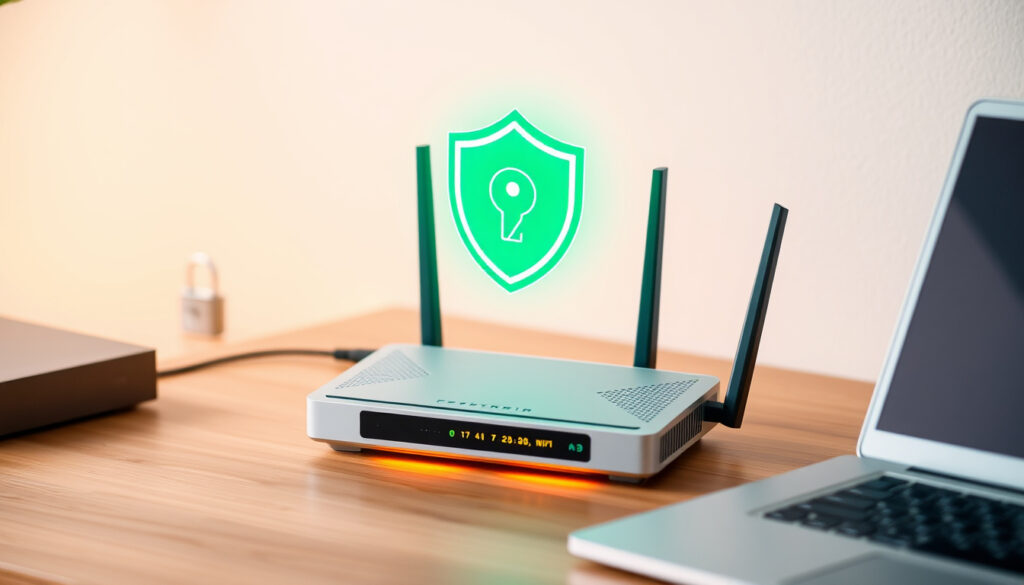
How to Secure Your Home Wi-Fi in 5 Steps
Few things are as unsettling as the suspicion that someone else is using your Wi‑Fi, but locking down your home network takes less time than brewing a cup of coffee. With a few settings tweaks grounded in guidance from CISA and NIST, you can turn a vulnerable router into a hardened gateway — no technical degree required.
Default credentials risk: Most routers ship with “admin/admin” — CISA says change immediately ·
WPA3 mandate: Required for Wi‑Fi Certified devices since July 2020 ·
Passphrase length: CISA recommends at least 20 characters
Quick snapshot
- WPA3 is the most secure Wi‑Fi standard available (CISA guidance (U.S. Department of Defense))
- Default router credentials remain a top vulnerability (UMass Amherst IT (university IT security))
- Regular firmware updates patch known exploits (UMass Amherst IT)
- Whether aluminum foil on a router provides real security (interferes with signal, not hackers)
- If MAC address filtering alone stops determined intruders
- Long-term privacy impact of hiding the SSID
- WPA3 finalized by Wi‑Fi Alliance in 2018 (Home Cyber Authority (cybersecurity blog))
- Mandated for Wi‑Fi Certified devices since July 2020 (PCMag (technology publication))
- Check your router admin interface for WPA3 support
- Change default admin credentials and enable encryption
- Schedule firmware updates monthly
Three key settings, one pattern: the most impactful changes are the simplest to make.
| Setting | Current risk | Action |
|---|---|---|
| Default admin credentials | Often “admin/admin” — trivial to guess | Change to a unique username and strong password (CISA recommendation) |
| Wi‑Fi encryption standard | Many routers still on WPA2 or worse | Enable WPA3 if supported; otherwise WPA2-AES (CISA guidance) |
| Firmware updates | Unpatched routers are easy targets | Check manufacturer website monthly for updates (UMass Amherst IT) |
| Remote management | Unnecessary feature exposes admin page | Disable remote administration (UMass Amherst IT) |
The pattern: four changes, each taking under a minute, cover the majority of common attack surfaces.
How do you secure your home Wi-Fi?
- Change default router credentials
- Enable WPA3 encryption
- Update router firmware regularly
- Disable remote management and WPS
Change default router credentials
The first line of defense is your router’s admin login. Most devices ship with a generic username like “admin” and a trivial password. CISA explicitly recommends changing the default username and password before connecting any devices. Log into your router’s admin interface — typically at 192.168.1.1 or 192.168.0.1 — and look for the administration settings.
Enable WPA3 encryption
CISA guidance states that WPA3 should be used if your router and devices support it. If some older devices don’t, use WPA2/3 transition mode — newer devices get WPA3, legacy ones fall back to WPA2-AES. Never select WEP or TKIP; those are deprecated and easily cracked (Home Cyber Authority (cybersecurity blog)).
Update router firmware regularly
Manufacturers release firmware updates to patch vulnerabilities. UMass Amherst IT recommends checking for firmware updates at least every few months. Most modern routers have an auto-update option; enable it if available.
Disable remote management and WPS
Remote management lets anyone on the internet reach your router’s admin panel. UMass Amherst IT advises turning this off. Wi‑Fi Protected Setup (WPS) is also a known security hole — disable it in your wireless settings.
The implication: these four changes require minimal time but close the most exploited attack vectors.
What security mode is best for a secure home Wi-Fi?
Three wireless security standards, one clear winner. Here’s how they compare.
| Standard | Encryption | Year introduced | Status |
|---|---|---|---|
| WPA3 | GCMP-256 (strongest) | 2018 | Current best practice (CISA) |
| WPA2-AES | CCMP-128 | 2004 | Acceptable fallback (Home Cyber Authority) |
| WEP / WPA (TKIP) | RC4 / TKIP | 1999 / 2003 | Deprecated — do not use (Home Cyber Authority) |
The takeaway: WPA3 is the only standard that meets modern federal recommendations. If your router doesn’t support it, WPA2-AES is a reasonable bridge until you upgrade.
How to check your router’s security mode
Log into your router’s admin interface and navigate to the wireless security section. Look for a dropdown labeled “Security mode” or “Encryption”. If you see WPA3, select it. If only WPA2, choose “WPA2-AES” or “WPA2-PSK (AES)”. PCMag notes that exact steps vary by manufacturer, but the setting is usually under Wi‑Fi or Wireless settings.
Why WEP and WPA are obsolete
WEP can be cracked in minutes with free tools. TKIP (used in original WPA) also has known vulnerabilities. Home Cyber Authority warns that these standards offer negligible protection and should be avoided entirely.
Home users with routers older than 2020 face a choice: enable WPA2-AES today and plan a hardware upgrade, or risk relying on a standard that federal agencies no longer consider adequate.
What this means: older routers force a trade-off between immediate convenience and long-term security.
How can I tell if my home Wi-Fi is hacked?
Signs of unauthorized access
- Noticeably slower internet speeds during off-peak hours
- Devices you don’t recognize in your router’s connected device list
- Mysterious data usage on your internet bill
Any of these can indicate a neighbor or a malicious actor is piggybacking on your network.
Using router logs to check connected devices
Every router maintains a list of connected devices. Log into your admin interface and look for “Attached Devices”, “DHCP Client List”, or “Status”. UMass Amherst IT recommends routinely reviewing this list and removing any unknown entries.
Running network scanning tools
For a deeper audit, tools like Wireshark or mobile apps such as Fing can scan your network and identify every connected device. PCMag suggests using these tools if you suspect an intrusion and your router’s interface lacks detail.
How to protect WiFi from neighbors?
Set a strong Wi‑Fi password
CISA recommends a passphrase of at least 20 characters. Avoid dictionary words, birthdays, or simple patterns. A phrase like “My-3-Kittens-Sleep-At-Night!” is easy to remember and hard to crack.
Enable MAC address filtering
MAC filtering lets you whitelist which devices can connect. Home Cyber Authority notes that while it adds a layer, it can be bypassed by spoofing a MAC address. Use it as a supplement, not a primary defense.
Disable SSID broadcast
Hiding your network name prevents casual discovery, but CISA explicitly warns that hiding the SSID adds no real security and can cause compatibility issues with some devices.
SSID hiding and MAC filtering give a false sense of security. The only reliable protection against neighbor intrusion is strong encryption (WPA3) combined with a long, unique passphrase.
The pattern: neighbor protection hinges on encryption, not on hidden network names or allowed-device lists.
What happens if you put aluminum foil on your Wi-Fi router?
Does aluminum foil improve security?
No. Aluminum foil can reflect or block radio waves, but it does nothing to prevent hacking. Home Cyber Authority explains that signal blocking doesn’t encrypt data or close attack vectors. If an attacker is outside your home, foil won’t stop them from cracking your encryption.
Why aluminum foil can interfere with signal
A piece of foil placed behind a router can act as a crude reflector, sometimes boosting signal in one direction at the expense of others. It can also cause signal degradation if it touches the antenna. The effect is unpredictable and often counterproductive.
Myth vs. reality: security through signal blocking
The idea that foil “protects” your Wi‑Fi is a myth. CISA and other security agencies focus on encryption, credential updates, and firmware, not physical barriers. If you want real security, invest 15 minutes in the settings above — not in tinfoil.
Aluminum foil is often the #1 home security tip in misleading blog posts, yet no federal or industry security document mentions it as a valid measure. The real threat isn’t radio waves leaking — it’s default passwords and outdated encryption.
The implication: security buys come from settings, not foil.
Confirmed facts
- WPA3 is the most secure Wi‑Fi standard (CISA guidance)
- Default credentials are a major vulnerability (UMass Amherst IT)
- Firmware updates fix security holes (UMass Amherst IT)
- Disabling remote management reduces attack surface (UMass Amherst IT)
What’s unclear
- Whether aluminum foil provides any security benefit
- If MAC filtering stops a determined attacker
- Long-term effectiveness of hiding SSID
- Whether the Wi‑Fi Alliance’s WPA3 certification guarantees real-world security for all device combinations (low confidence source)
“Change your default router username and password.”
CISA Module 5: Securing Your Home Wi‑Fi
“Unnecessary functions should not be included in the home router.”
NIST IR 8425A (U.S. National Institute of Standards and Technology)
The steps above — changing credentials, enabling WPA3, updating firmware, and turning off unnecessary features — are the digital equivalent of locking your front door and checking the windows. For the average home user, the choice is clear: take 15 minutes to secure your router, or risk being one of the one-in-five networks that has been accessed without permission.
internetgovernance.org, ituonline.com, youtube.com, malwarebytes.com, grc-docs.com, netgear.com, reddit.com
CISAs rekommendationer för att skydda ditt nätverk är liknande de steg för att säkra hemmets WiFi.
Frequently asked questions
What is the difference between WPA2 and WPA3?
WPA3 uses stronger GCMP-256 encryption and provides better protection against brute-force password guessing. WPA2 uses CCMP-128 and is still considered safe for older devices, but WPA3 is the current gold standard.
How often should I update my router firmware?
Check for updates every 1-2 months, or enable auto-update if your router supports it. Security patches often address newly discovered vulnerabilities.
Can a VPN secure my home Wi-Fi?
A VPN encrypts traffic from your device to the VPN server, which helps on public networks, but it doesn’t replace strong router security settings. Both layers are recommended.
Is it safe to use public Wi-Fi at home?
Public Wi‑Fi (open networks) should not be used at home. Always set a WPA2 or WPA3 passphrase to encrypt traffic.
What is the best password length for Wi-Fi?
CISA recommends at least 20 characters. Longer passphrases with a mix of letters, numbers, and symbols are exponentially harder to crack.
Does disabling SSID broadcast improve security?
No. Hiding the SSID does not prevent determined attackers from detecting the network and can cause compatibility issues with some devices. Encryption is what matters.
Related reading: Can You Run It? Safety, Accuracy, Mobile Support & Alternatives and Best Wireless Presentation Clickers (2025): Top Picks.
More related posts
 Norway National Football Team: Squad, History, 2026 Hopes
 Hotel Riu Plaza The Gresham Dublin – Central Location and Reviews
 Drive to Survive Season 7: Release Date, Episodes & Future
 Sorra Daurada Splash Hotel: Beach, All-Inclusive, Cleanliness
 PSO Levy Cut Ireland: New Electricity Prices from December 2025
 St Margaret’s Golf Club – Guide to Green Fees, Booking and Facilities
 FIFA World Cup European Qualifiers Standings 2026: Spots & Teams
 Meaghers Pharmacy Discount Code: 15% Off + Free Voucher