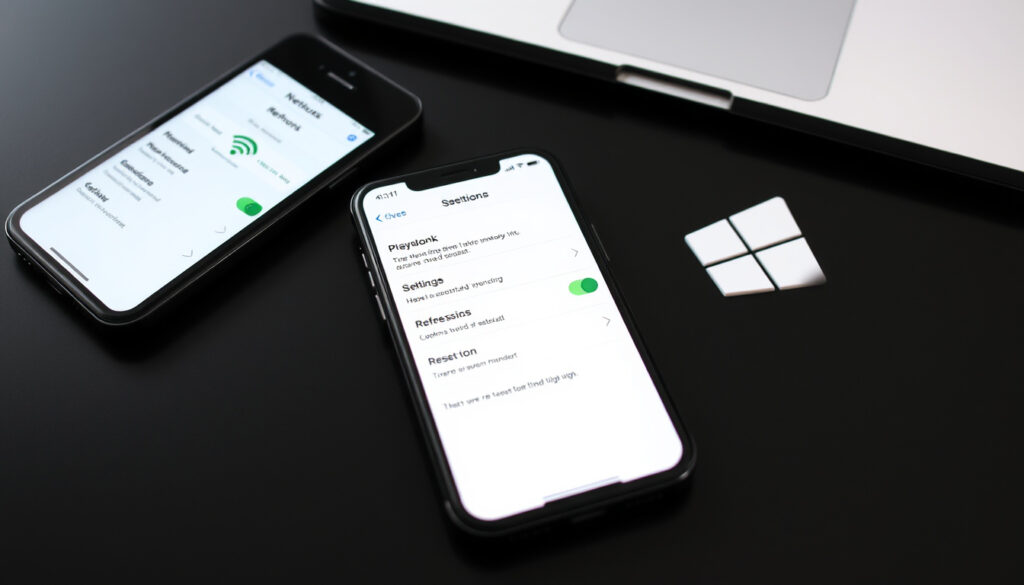
How to Reset Network Settings: iPhone, Android, Windows
Your phone keeps dropping Wi-Fi, Bluetooth won’t pair, and mobile data has become unreliable — all at once. It’s the kind of problem that makes you want to throw the device against a wall, but the fix is simpler than you think. Resetting your network settings clears out corrupted configurations that accumulate over time, and the process takes less than a minute on any device. Here’s how to do it for iPhone, Android, and Windows, with the exact steps verified against official support documentation.
Devices impacted: iPhone, Android, Windows · Data deleted: Wi-Fi passwords, VPN, Bluetooth pairings · Top causes fixed: Wi-Fi, cellular data, network connection issues · Official sources cited: Apple, Microsoft, Verizon · Steps required: 3–6 per device
Quick snapshot
- Network reset clears all saved Wi-Fi networks and passwords (Apple Support)
- VPN profiles not installed by MDM are removed during reset (Apple Communities)
- Photos, apps, and personal files remain untouched (iPhone Reset Network Settings and Keep Files)
- Exact impact on custom VPN apps varies depending on how the VPN was configured
- Whether network reset resolves carrier-specific provisioning issues remains device-dependent
- Network reset feature has been available across iOS and Android for multiple versions with consistent paths
- Apple documentation reflects the current procedure for iPhone 16, iPhone 15, and older models
- After reset, you’ll need to re-enter all Wi-Fi passwords and re-pair Bluetooth devices
- Cellular data roaming may need to be re-enabled if you travel internationally
| Setting path | Location |
|---|---|
| iPhone path | Settings > General > Transfer or Reset iPhone > Reset > Reset Network Settings |
| Android path (Samsung) | Settings > General Management > Reset > Reset network settings |
| Android path (Stock) | Settings > System > Reset options > Reset Wi-Fi, mobile & Bluetooth |
| Windows path | Settings > Network & internet > Advanced network settings > Network reset |
| Data lost | Wi-Fi passwords, cellular settings, VPN configurations, Bluetooth pairings |
| Data safe | Apps, photos, personal files, accounts |
How do I reset my network settings?
The process differs depending on which device you own. All three major platforms — iPhone, Android, and Windows — include network reset options, though the exact path varies by operating system and manufacturer.
On iPhone
- Open Settings and tap General
- Scroll down and select Transfer or Reset iPhone
- Tap Reset, then select Reset Network Settings
- Enter your device passcode when prompted and confirm the action
The reset turns Wi-Fi off and back on, disconnects you from any current network, and removes all stored network credentials according to Apple’s official support documentation. After completion, your device name reverts to “iPhone” and any manually trusted certificates are marked untrusted.
On Android
- Samsung and similar manufacturers: Settings > General Management > Reset > Reset network settings
- Stock Android (Google Pixel, Nothing Phone): Settings > System > Reset options > Reset Wi-Fi, mobile & Bluetooth
Authentication via fingerprint, PIN, or password is required before the reset proceeds per Android tutorials. The procedure works across Samsung, OnePlus, Xiaomi, Oppo, Vivo, and Pixel devices.
On Windows
Windows handles network resets differently from mobile operating systems, using a dedicated reset tool that reinstalls network adapters from scratch.
- Open Settings and navigate to Network & internet
- Scroll to Advanced network settings and select Network reset
- Click Reset now and restart your computer when prompted
Windows removes and reinstalls network adapters during the reset, which resolves stubborn connectivity issues that survive standard troubleshooting per Microsoft Support documentation. Your PC will restart automatically to complete the process.
All three platforms require authentication before resetting — iPhone asks for your passcode, Android demands fingerprint or PIN, and Windows requires admin confirmation. This guardrail prevents accidental resets.
What will happen if I do reset network settings?
Understanding what disappears during a network reset helps you prepare before starting. The impact is significant but bounded.
Deleted data types
- Wi-Fi networks: All saved networks and their passwords are removed. You’ll need to rejoin each network manually after the reset.
- Cellular settings: APN configurations and carrier settings reset to defaults. Cellular data roaming may turn off and requires re-enabling if you travel.
- VPN configurations: User-installed VPN profiles are deleted. MDM-installed VPNs configured by your organization remain intact.
- Bluetooth pairings: All paired devices are unpaired. Headphones, smartwatches, car connections — all require re-pairing.
- Hotspot settings: Personal hotspot configurations are cleared.
What remains intact
- Photos, videos, and documents stay on your device
- Installed apps and their data are preserved
- Apple Pay and payment settings are not affected by network reset — they are only removed if you choose “Reset All Settings” instead (CodeProof Support)
- Your Apple ID or Google account remains signed in
The distinction between “Reset Network Settings” and more aggressive options like “Erase All Content and Settings” is crucial according to CodeProof Support. Network reset touches only connectivity configurations — nothing else.
iPhone network reset keeps “Ask to Join Networks” turned on, so you’ll be prompted for each new Wi-Fi connection after the reset. Android behaves similarly, though the exact wording varies by manufacturer.
Is it a good idea to reset network settings?
Network reset isn’t always the first move. The decision depends on the severity of your issue and how much reconfiguration you can handle.
Upsides
- Fixes persistent Wi-Fi connection failures that survive reboots
- Resolves Bluetooth pairing errors and audio stuttering
- Clears corrupted mobile data settings causing slow or nonexistent connectivity
- Removes outdated VPN configurations that may be blocking your connection
- Resets cellular network selection if your phone got stuck on the wrong carrier
- Safer than factory reset — no data loss, no reinstallation required
Downsides
- Requires re-entering every Wi-Fi password you had saved
- Bluetooth devices must be re-paired from scratch
- VPN configurations need to be recreated if you use a personal VPN
- Cellular data roaming must be manually re-enabled for international travel
- Temporary disruption while you reconnect everything
When to use it
- Use it when: Wi-Fi shows as connected but pages won’t load, Bluetooth headphones connect but audio cuts out, mobile data works on Wi-Fi but not off it, you’ve changed networks or SIM cards and settings got confused.
- Skip it when: Your router is down (reset the router instead), you’re traveling and data roaming is disabled by your carrier, you have dozens of Wi-Fi networks you don’t want to re-enter.
Common network issues that benefit from reset include Wi-Fi not connecting, signals constantly dropping, Bluetooth pairing errors, and slow internet that doesn’t improve with restarting per technical educators. It’s a simple yet effective troubleshooting step.
How do I fix my phone network connection?
Before committing to a full network reset, try these less disruptive fixes. They resolve many connectivity problems without erasing your saved networks.
Before resetting
- Restart your device: Power it off completely and turn it back on. This clears temporary network glitches without affecting saved settings.
- Toggle airplane mode: Turn airplane mode on, wait 15 seconds, then turn it off. This forces your phone to reconnect to nearby networks.
- Forget and rejoin a Wi-Fi network: Go to Wi-Fi settings, tap the (i) next to your network, select “Forget This Network,” then rejoin by selecting it again and entering the password.
- Check for carrier settings updates: On iPhone, go to Settings > General > About. If an update is available, a prompt appears. On Android, check Settings > System > System update.
iPhone-specific fixes
- Reset network settings if toggling airplane mode doesn’t help
- Check that cellular data is enabled in Settings > Cellular
- Ensure “Data Roaming” is on if you’re traveling outside your home coverage area — Apple notes this may be turned off after a network reset according to Apple Support
- Try a forced restart: hold the volume down and side button for iPhone 14 and later, or hold the Home and Wake/Sleep buttons together for older models per Apple Communities
Android-specific fixes
- Toggle mobile data off and on in Settings > Network & internet > Mobile network
- Check if a system update is pending in Settings > System > Software update
- Clear the cache for your network settings app: Settings > Apps > Network settings app > Storage > Clear cache
- Reset network settings if the problem persists across multiple days
If these steps don’t resolve the issue, network reset is the next logical move. For travelers, a reset often clears the confusion that happens when your phone tries to latch onto a local carrier but gets stuck mid-process.
A restart fixes temporary glitches. A network reset fixes configuration corruption. If your problem came back after a restart, it’s probably a configuration issue — that’s when a reset earns its value.
Will resetting my network settings delete everything?
No — this is the most important thing to understand. Network reset is surgical, not destructive.
Personal data impact
- Photos and videos: Completely safe. Not touched by network reset.
- Apps and app data: All apps remain installed with their data intact. Only network-related app permissions may need to be re-granted.
- Messages and call history: Preserved in full, provided you’re using your device’s native messaging apps.
- Apple Pay or Google Pay: Payment cards registered with the system remain — network reset does not touch them. Some apps may require re-authentication.
Apps and photos safe?
Yes. The confusion often stems from the word “reset” — it sounds aggressive, like deleting everything. But resetting network settings only touches your connectivity configurations according to Android tutorials. A 2024 video guide explicitly states: “This way is safe and won’t delete your personal data” per iPhone Reset Network Settings and Keep Files.
- Before you reset: Write down your Wi-Fi passwords or check if your password manager has them saved. This is the only real inconvenience.
- After you reset: Rejoin your Wi-Fi networks, re-pair your Bluetooth devices, and re-enable data roaming if you need it.
The process takes 2–5 minutes to complete plus another 10–15 minutes to reconfigure everything, depending on how many networks and devices you have. It’s tedious but not catastrophic.
“When you reset network settings, previously used networks and VPN settings that weren’t installed by a configuration profile or mobile device management (MDM) are removed.”
Related reading: Mobile Data Not Working – Complete Troubleshooting Guide · Virgin Media Customer Care – Ireland UK Phone Numbers and Hours
iPhone users tackling stubborn Wi-Fi or Bluetooth drops will find the iPhone-specific reset guide invaluable for data-safe troubleshooting steps.
Frequently asked questions
Why is my phone suddenly not connecting to my Wi-Fi?
The most common causes are saved network credentials becoming corrupted, the router’s MAC address filtering blocking your device, or an outdated security protocol. Start by toggling airplane mode, then try forgetting and rejoining the network. If that fails, reset network settings.
How do I get my mobile network working again?
First, check that mobile data is turned on in your settings. If you’re traveling, confirm data roaming is enabled. For iPhone, Apple notes that cellular data roaming may be turned off after a network reset per Apple Support. If the issue persists, reset network settings to clear the APN configuration.
Why is my cellular data not working?
This usually happens when APN settings are incorrect, your phone is stuck on a band with no coverage, or data roaming got disabled without you noticing. Go to Settings > Mobile/Cellular and check your settings. For persistent issues, reset network settings to restore carrier defaults.
Is unplugging your router the same as resetting it?
No. Unplugging the router only power-cycles your internet source — it doesn’t clear your device’s stored network configurations. If your phone or computer has corrupted settings, restarting the router won’t fix them. Reset network settings on the device itself for configuration-related issues.
Can I just reset my network settings?
Yes. Reset network settings is a safe, non-destructive procedure that resolves most connectivity issues without affecting your personal data. It clears saved networks, Bluetooth pairings, and VPN configurations, but leaves your photos, apps, and accounts intact.
Is network reset a good idea?
For persistent Wi-Fi drops, Bluetooth pairing failures, or mobile data that won’t connect despite good signal — yes. It’s more effective than restarting and safer than a factory reset. The only cost is time: you need to rejoin networks and re-pair devices afterward. If you’ve already tried restarting and toggling airplane mode, network reset is your next best option.
More related posts
 Bath & Body Works Ireland: Where to Buy, Products & Sales (2025)
 When is Mother’s Day 2026? UK, USA & Worldwide Dates
 League of Ireland Fixtures 2025: Complete Schedule & TV Guide
 5 Day Weather Forecast Ireland – Met Éireann & BBC Dublin
 House for Sale Leitrim: Your Complete Buyer’s Guide (2025)
 15 Pound to Euro: Live GBP to EUR Rate & Fees Compared
 Joe-Warren Plant: Bio, Age, Parents & Career
 Geothermal Pools in Reykjavik Iceland: Complete Guide