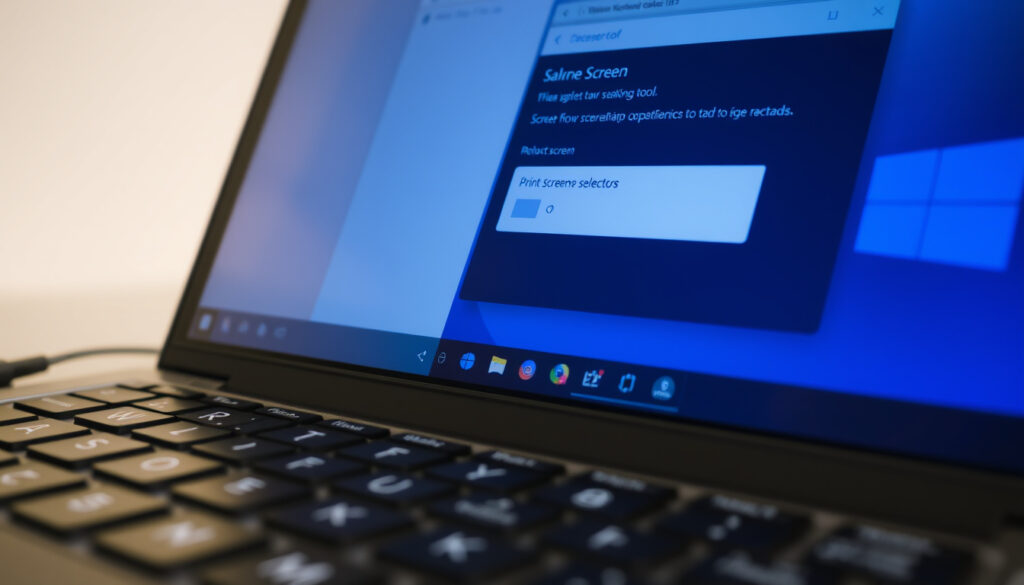
How to Screenshot on PC: All Methods for Windows 10 & 11
You only need to press a few keys to capture whatever’s on your screen, but with so many shortcuts available, it’s easy to get lost whether you need a full-screen image, a specific window, or just a region. Windows 10 and 11 offer several built-in methods, from the classic Print Screen to the modern Snipping Tool, and this guide explains when to use which.
- Determine what type of screenshot you need: full screen, active window, specific region, or in-game capture.
- For full screen to clipboard, press PrtSc.
- For full screen saved directly to file, press Win+PrtSc.
- For a region or window, press Win+Shift+S to open the Snipping Tool overlay.
- For in-game capture, press Win+G to open the Game Bar.
Print Screen (PrtSc) key present on standard keyboards: True ·
Windows + Shift + S opens Snipping Tool overlay: True ·
Alt + PrtSc captures active window: True ·
Windows + G opens Game Bar for in-game screenshots: True ·
Screenshot saved in Pictures > Screenshots folder by default: True
Quick snapshot
- Print Screen copies the entire screen to clipboard (Logitech (keyboard manufacturer documentation))
- Win+PrtSc saves a screenshot as a PNG file (PCMag (technology publication))
- Whether Ctrl+Alt works as a screenshot shortcut on some custom keyboards (Reddit (community discussion))
- Whether F12 can be remapped to screenshot on all PC brands (Microsoft (official keyboard shortcut list))
- 1985: Windows 1.0 introduces PrtSc key (Wikipedia (Windows history))
- 2009: Windows 7 introduces Snipping Tool (Wikipedia (Windows history))
- 2015: Windows 10 introduces Snip & Sketch (Wikipedia (Windows history))
- 2021: Windows 11 merges into Snipping Tool (Wikipedia (Windows history))
- Microsoft continues to unify screenshot tools in Windows 11 (Malwarebytes (cybersecurity company))
- Third-party apps like Lightshot and ShareX add scrolling capture (University of Southampton eLearn (higher education IT guide))
Five facts about Windows screenshot history, one pattern: Microsoft has steadily expanded capture options from a single clipboard copy to a full suite of snipping tools.
| Fact | Value |
|---|---|
| Earliest screenshot method | Print Screen (since Windows 1.0) |
| Default save format | PNG |
| Default screenshot location | Pictures\Screenshots |
| Snipping Tool introduced | Windows 7 |
| Game Bar introduced | Windows 10 |
How do I take a screenshot?
Using the Print Screen key
- Press PrtSc to copy the entire screen to the clipboard (Microsoft Support (official Windows documentation)).
- The image is not saved as a file — you must paste it into an app like Paint or Word.
- Works on all versions of Windows since 1.0.
Using the Snipping Tool
- Press Windows key + Shift + S to open the Snipping Tool overlay (PCMag (technology publication)).
- Choose from rectangular, free-form, window, or full-screen snip (Malwarebytes (cybersecurity company)).
- The snip opens in the Snipping Tool for editing and saving.
Using the Game Bar (for games)
- Press Windows key + G to open the Xbox Game Bar (Microsoft Support (official Windows documentation)).
- Click the camera icon in the Capture widget to take a screenshot.
- Designed for full-screen games; saves to Videos\Captures.
The Print Screen key is 40 years old, but the Snipping Tool overlay (Win+Shift+S) is now the fastest way for most tasks. Microsoft’s own documentation recommends it as the primary method.
How do I screenshot on my PC keyboard?
Using the PrtSc key alone
- Press PrtSc — the entire screen is copied to the clipboard (Logitech (keyboard manufacturer documentation)).
- No visual feedback; paste into an app to see the capture.
Using Alt + PrtSc for the active window
- Press Alt + PrtSc to capture only the active window (Microsoft Support (official Windows documentation)).
- Also copies to clipboard — no file saved automatically.
- Ideal for capturing a single dialog box or app without desktop clutter.
Using Windows + PrtSc to save directly
- Press Windows key + PrtSc — the screen dims briefly and a PNG file is saved to Pictures\Screenshots (PCMag (technology publication)).
- Available on Windows 8 and later.
- Best for full-screen captures that you want to keep immediately.
The pattern: clipboard-only shortcuts (PrtSc, Alt+PrtSc) give you flexibility to paste into any app, while Win+PrtSc writes directly to disk. The trade-off: convenience vs. control.
“To capture just the active window, press Alt + PrtSc.”
Microsoft Support (official Windows documentation)
How to take a screenshot with Ctrl+Alt?
Does Ctrl+Alt do anything? (It’s not a standard shortcut)
- Ctrl+Alt alone is not a default Windows screenshot shortcut (Logitech (keyboard manufacturer documentation)).
- Some third-party keyboard software may remap it, but that’s not standard.
Using Ctrl+Shift+S (Snipping Tool shortcut)
- Press Ctrl + Shift + S to open the Snipping Tool overlay on Windows 10 and 11 (PCMag (technology publication)).
- This is an alternative to the more common Win+Shift+S.
Overview of other Ctrl-based shortcuts
- Inside Snipping Tool: Ctrl + C copies the snip to clipboard (Malwarebytes (cybersecurity company)).
- Ctrl + S saves the snip.
- These work after you’ve captured an image, not for initiating the capture.
Is F12 a screenshot key?
- F12 is not a default screenshot key on Windows. Some browsers use F12 for developer tools. Third-party software may remap F12 for screenshots, but this is not standard (Microsoft (official keyboard shortcut list)).
The catch: Ctrl+Alt is a dead end for screenshots. Stick with Win+Shift+S or Ctrl+Shift+S for the Snipping Tool overlay.
Some custom keyboards or gaming software may assign Ctrl+Alt to a screenshot function, but this is not part of Windows itself. Relying on it can break when you switch machines.
The implication: standard Microsoft shortcuts ensure consistent behavior across devices.
How do I get to Screenshots on my PC?
Finding screenshots saved with Win+PrtSc
- Open File Explorer, navigate to Pictures\Screenshots (Reddit (community discussion)).
- Files are named Screenshot (1).png, Screenshot (2).png, etc.
- You can also access them via the Start menu search for “Screenshots.”
Finding screenshots from Game Bar
- Open File Explorer, go to Videos\Captures (PCMag (technology publication)).
- Game Bar saves screenshots and video clips in the same folder.
- You can also open Game Bar (Win+G) and click “Show all captures” to see them.
Changing the default save location
- Right-click the Screenshots or Captures folder, select Properties, then the Location tab.
- Move the folder to a new location (e.g., OneDrive or an external drive).
- Windows will redirect future saves automatically.
Why this matters: knowing where screenshots land saves you from digging through folders. Set a custom location if you capture frequently.
How do I screenshot on Windows 10 and Windows 11?
Windows 10: Snipping Tool and Snip & Sketch
- Windows 10 includes both Snipping Tool (legacy from Windows 7) and Snip & Sketch (introduced in 2015) (Malwarebytes (cybersecurity company)).
- Win+Shift+S opens Snip & Sketch’s snipping bar.
- Both apps can be launched from the Start menu.
Windows 11: Snipping Tool redesign
- Windows 11 consolidates screenshot tools into a single Snipping Tool app (PCMag (technology publication)).
- The app includes a video recording feature (Win+Shift+R).
- You can also set the Print Screen key to open Snipping Tool via Settings > Accessibility > Keyboard.
Screenshots without the Windows key: third-party tools
- If your keyboard lacks a Windows key, use Snipping Tool from the Start menu (University of Southampton eLearn (higher education IT guide)).
- Third-party apps like Lightshot, ShareX, and Greenshot offer customizable shortcuts (Malwarebytes (cybersecurity company)).
- These tools add scrolling capture, cloud upload, and advanced editing.
How do I take a screenshot on an HP PC?
- HP laptops typically use the same Windows shortcuts: PrtSc, Alt+PrtSc, Win+PrtSc, and Win+Shift+S work as on any PC. For model-specific combinations (e.g., Fn+PrtSc), refer to HP’s support page (HP Support (PC manufacturer guide)).
“Press Alt + PrtSc to capture only the active window on HP laptops.”
“Hold down Win and Shift and press S to use Snipping Tool.”
Windows 11 users get the best of both worlds: a unified Snipping Tool with video capture, while Windows 10 users can still rely on Snip & Sketch. Third-party tools fill gaps for advanced needs like scrolling captures.
For anyone who captures screenshots regularly, the choice is clear: use Win+Shift+S for quick snips, or Win+PrtSc for full-screen saves, and avoid the clipboard-only PrtSc unless you’re pasting into an app.
Confirmed facts
- PrtSc copies entire screen to clipboard (Microsoft Support)
- Win+PrtSc saves a screenshot file (PCMag)
- Snipping Tool is available in Windows 10 and 11 (Malwarebytes)
- Game Bar captures screenshots in full-screen games (PCMag)
What’s unclear
- Whether Ctrl+Alt works as a shortcut on some custom keyboards (Logitech)
- Whether F12 can be remapped to screenshot on all PC brands (Reddit)
For anyone who captures screenshots regularly, the choice is clear: use Win+Shift+S for quick snips, or Win+PrtSc for full-screen saves, and avoid the clipboard-only PrtSc unless you’re pasting into an app.
my.wlu.edu, youtube.com, youtube.com, youtube.com, reddit.com, facebook.com
Frequently asked questions
How do I take a screenshot on a laptop without PrtSc key?
Use the Windows key + Shift + S shortcut to open Snipping Tool, or launch the Snipping Tool app from the Start menu. Some laptops use Fn + Windows key + Spacebar as a substitute (Logitech).
Can I take a screenshot on a PC using only the keyboard?
Yes. PrtSc, Alt+PrtSc, Win+PrtSc, Win+Shift+S, and Ctrl+Shift+S all work without a mouse (Microsoft Support).
What is the difference between Screenshot and Snip?
A screenshot typically refers to a full-screen capture, while a snip is a selected region. Windows uses “snip” for the Snipping Tool and “screenshot” for the file saved by Win+PrtSc.
How to take a screenshot in Windows without saving a file?
Use PrtSc or Alt+PrtSc to copy to the clipboard. The image is not saved until you paste it into an app (Microsoft Support).
How to capture a scrolling screenshot on PC?
Windows does not have a built-in scrolling screenshot feature. Third-party tools like ShareX, Greenshot, or Lightshot can capture scrolling windows (Malwarebytes).
Is there a shortcut to screenshot in a game on PC?
Yes, press Windows key + G to open the Game Bar, then click the camera icon or press Win+Alt+PrtSc (PCMag).
How to edit a screenshot after capturing it?
After taking a snip with Snipping Tool, you can annotate, crop, and save using the built-in editor. For full-screen captures, paste into Paint or a photo editor.
Why is my PrtSc key not working?
Check if your keyboard has an Fn lock or a different keyboard layout. You can also try using Windows key + Shift + S as a fallback. Some laptops require Fn + PrtSc (HP Support).
More related posts
 Houses for Sale in Dingle: Find Your Perfect Property
 EP Mooney Long Mile Road: Contact, Hours, Reviews & Used Cars
 Air Fryer Chicken Thighs: Times, Temp & Tips
 Munster v La Rochelle TV: Channel, Stream & Kick-Off Time
 What Can Pins and Needles Be a Sign Of
 Shoulder Length Hairstyles for Fine Hair: 25+ Volumizing Looks
 One for Sorrow Two for Joy: Full Magpie Rhyme
 Jean-Marie Neethling: Biography, Fitness & Family Journey